
Accidentally deleting photos from your iPhone 13 triggers immediate panic — but before assuming they're permanently lost, it's worth understanding that iOS has multiple built-in safety nets specifically designed for this situation. Most people don't realize how many recovery layers exist before photos are truly gone.
Recovering deleted photos on iPhone 13 is often straightforward if you act within the right timeframe, and even more reliable if iCloud Photos backup was active. This guide covers the complete recovery process, from the easiest built-in method to more involved backup restoration options.
Understanding iPhone's Photo Deletion Safety Net
Before panicking, know that iOS doesn't immediately erase deleted photos:
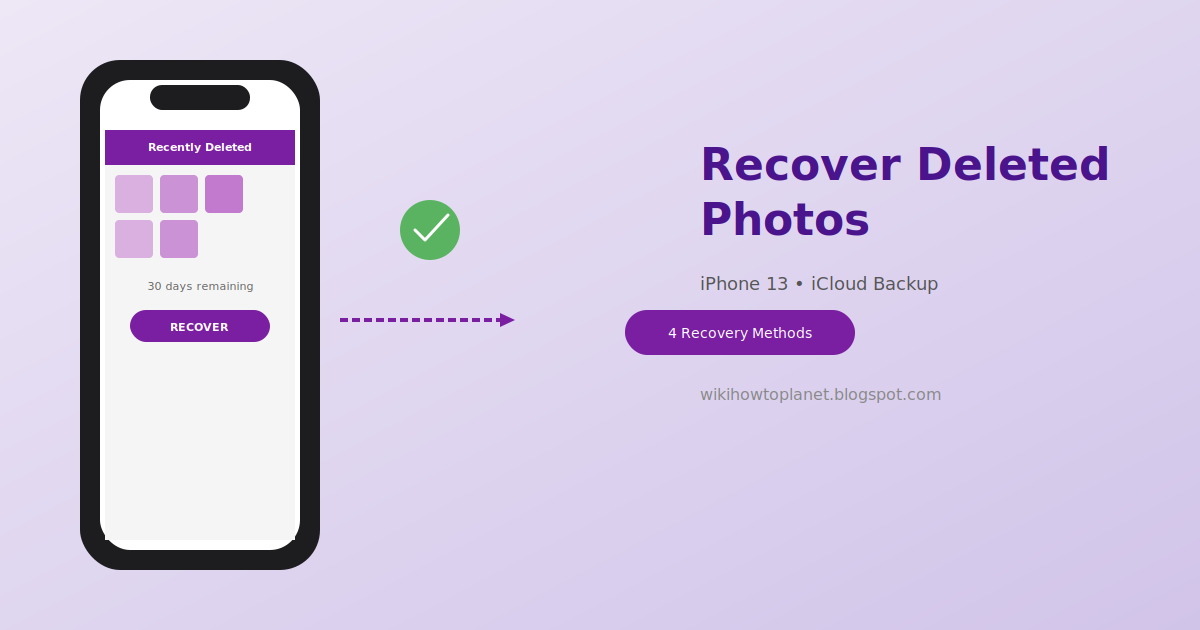
- Recently Deleted album — holds deleted photos for 30 days automatically, built directly into the Photos app
- iCloud Photos sync — if enabled, deletion syncs across devices, but recovery options still exist through iCloud.com directly
- iCloud Backup (separate from iCloud Photos) — device-wide backups may contain photos from before recent deletions
Method 1: Check Recently Deleted Album First (Start Here Always)
This works if: Photos were deleted less than 30 days ago
Time needed: 2-3 minutes
- Open the Photos app on your iPhone 13
- Tap Albums at the bottom
- Scroll down to Utilities section, tap Recently Deleted
- You'll see all photos deleted within the last 30 days, along with a countdown showing days remaining before permanent deletion
- Select the photos you want to recover
- Tap Recover (bottom right)
- Confirm — photos return to your main library immediately
This resolves the vast majority of accidental deletion cases — always check here first before considering more complex recovery methods.
Method 2: Check iCloud.com Directly (If Recently Deleted Was Empty)
This works if: You use iCloud Photos, and the Recently Deleted album was already emptied or the 30-day window has passed on your device, but iCloud's own web interface might retain slightly different timing
- On any computer, go to iCloud.com
- Sign in with your Apple ID
- Click Photos
- Look for a Recently Deleted album here as well — sometimes web sync timing differs slightly from on-device timing
- If photos appear, select and click Recover
Method 3: Restore from iCloud Backup (More Involved, Device-Wide)
This works if: Photos were permanently deleted (past the 30-day window) but you have an iCloud Backup from before the deletion occurred
Important consideration: This restores your ENTIRE device to that backup point, not just photos — you'll lose more recent data, messages, and settings changes made after that backup date.
- Back up any current important data first (this process will overwrite recent changes)
- Go to Settings → General → Transfer or Reset iPhone → Erase All Content and Settings
- During the setup process, choose Restore from iCloud Backup
- Select the backup dated before your photo deletion
- Wait for the complete restoration process (can take 30 minutes to several hours depending on backup size)
Weigh this carefully: Only pursue this method if the specific deleted photos are valuable enough to justify losing other more recent phone activity.
Method 4: Check Other Synced Devices
This works if: You have iCloud Photos enabled across multiple Apple devices (iPad, Mac, another iPhone)
- Check your iPad or Mac's Photos app
- If sync hadn't fully propagated the deletion yet (rare but possible with connectivity issues), photos might still exist momentarily on another device
- If found, save a local copy immediately before further sync occurs
Note: This is a narrow window opportunity and works less reliably than Methods 1-2, but worth checking if you have multiple devices.
What Genuinely Won't Work
Third-party "iPhone photo recovery" apps claiming to recover photos without any backup — iOS's security architecture prevents the kind of direct storage scanning that works on Android. Be skeptical of apps promising this.
Recovery after 30+ days with no iCloud backup — if Recently Deleted has expired and no iCloud Backup exists from before deletion, the photos are genuinely unrecoverable through standard means.
Troubleshooting
Q: Recently Deleted album shows the photos but "Recover" button is greyed out
This sometimes happens with storage space issues. Check Settings → General → iPhone Storage to ensure adequate free space, then retry.
Q: I don't see a Recently Deleted album at all
Verify you're looking in the correct location: Photos app → Albums tab → scroll to Utilities section. If genuinely absent, check if Photos app permissions were recently reset (Settings → Privacy → Photos).
Q: iCloud Backup restoration seems stuck at a specific percentage
This is common with large backups over slower WiFi. Ensure stable WiFi connection, keep the device connected to power, and be patient — some backups genuinely take hours for extensive photo libraries.
Frequently Asked Questions
Q: Does emptying "Recently Deleted" manually mean photos are gone forever immediately?
Yes, manually emptying this album (rather than waiting the 30 days) does trigger immediate permanent deletion from your device and iCloud Photos sync. Only an iCloud Backup from before this action would allow recovery at that point.
Q: Will recovered photos have their original date and location metadata?
Yes, both Recently Deleted recovery and iCloud Backup restoration preserve original EXIF metadata completely.
Q: Can I recover just specific photos from an iCloud Backup, or is it all-or-nothing?
Unfortunately, iCloud Backup restoration through the standard iOS setup process restores the entire device state — there's no selective "just recover these specific photos" option through this method.
Q: What if I have iCloud Photos disabled entirely?
Without iCloud Photos, you rely solely on the on-device Recently Deleted album (still works, 30-day window) and any iCloud Backup or computer backup that might separately contain your Camera Roll from before deletion.
Setting Up Better Protection Going Forward
- Enable iCloud Photos: Settings → [Your Name] → iCloud → Photos → toggle ON — this provides continuous cloud sync as an additional safety layer beyond just the 30-day Recently Deleted window
- Verify iCloud Backup is current: Settings → [Your Name] → iCloud → iCloud Backup → check "Last Successful Backup" date
- Consider a secondary backup service: Google Photos also works on iPhone as an additional backup layer, providing redundancy beyond Apple's ecosystem alone
Conclusion
The 30-day Recently Deleted album resolves the overwhelming majority of accidental photo deletion situations on iPhone 13 — this built-in safety net is often overlooked simply because people panic and assume permanent loss immediately after deletion. Checking this single location first, before pursuing more complex recovery methods, solves the problem in most real-world cases within minutes.
For more comprehensive iPhone data protection strategies, see our guides on recovering deleted WhatsApp messages without backup and finding a lost iPhone even without active location tracking.


.png)
0 Comments