
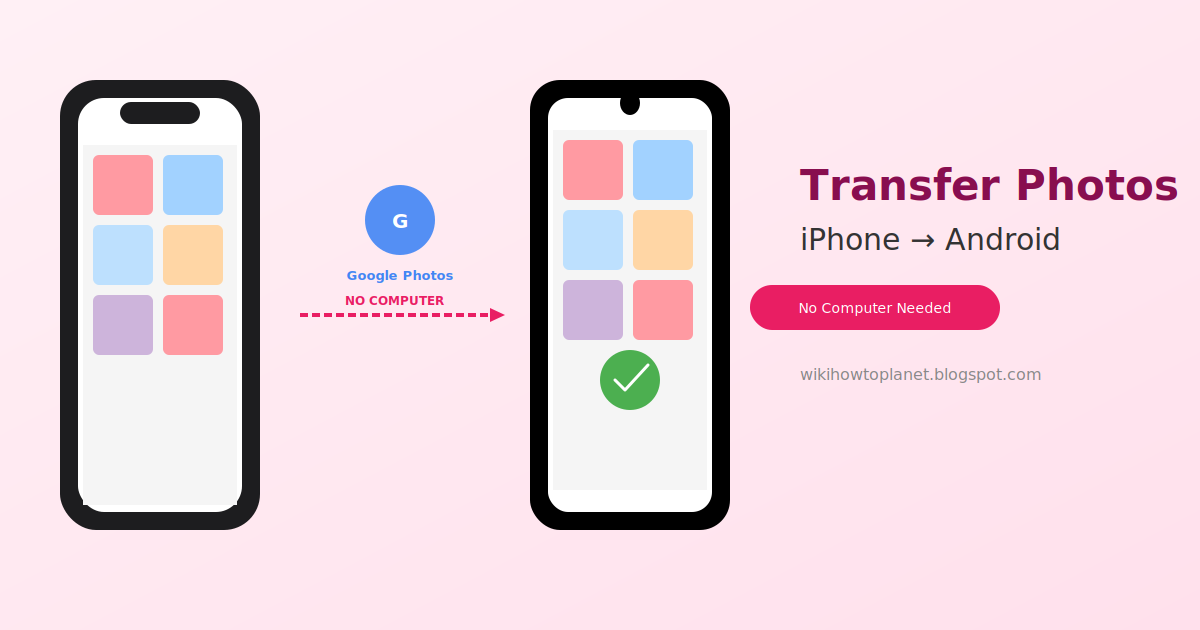
Switching from iPhone to an Android device brings up an immediate concern: years of photos taken on iOS need to move over, but without a computer readily available, the process feels uncertain. Most guides assume you have a laptop nearby — this one doesn't.
Transferring photos directly between iPhone and Android without touching a computer is entirely possible, using methods built into both operating systems or simple app-based solutions. This guide covers every practical approach, ranked by ease and reliability.
Why Computer-Free Transfer Is Actually Preferable for Most People
Beyond just convenience, phone-to-phone transfer methods often work better than computer-based approaches:
- No need to install desktop software or drivers
- Faster for moderate photo libraries (under 5,000 photos)
- Works even if you don't own a computer at all
- Preserves photo metadata (dates, locations) more reliably than some computer transfer methods
Method 1: Google Photos (Most Reliable, Works Across Any Devices)
Time needed: 10-30 minutes for backup, instant access afterward
Step-by-step:
- On your iPhone, download Google Photos from the App Store
- Open the app, sign in with your Google Account
- Go to Settings (tap your profile icon) → Backup → turn ON
- Choose "High Quality" (free, unlimited) or "Original Quality" (uses Google storage quota)
- Wait for backup to complete — this happens automatically over WiFi
- On your new Android phone, install Google Photos if not pre-installed
- Sign in with the same Google Account
- All your photos automatically appear — no manual transfer step needed
Why this works so well: Google Photos backup happens directly to the cloud, completely independent of what device you view them from afterward. This is genuinely the most hassle-free method available.
Method 2: AirDrop-to-Nearby Share Won't Work (Common Misconception)
Important clarification: Many people assume there's a direct AirDrop equivalent between iPhone and Android — there isn't. AirDrop only works between Apple devices, and Android's Nearby Share only works between Android devices. These two systems aren't compatible with each other.
This is why Method 1 (Google Photos) or Method 3 (below) become necessary rather than expecting a "wireless direct transfer" button.
Method 3: WhatsApp/Telegram Transfer (For Specific Photos)
Use this if: You want to transfer specific photos quickly rather than your entire library
- On iPhone, open WhatsApp or Telegram
- Create a chat with yourself (many apps allow this) or send to a trusted contact temporarily
- Select and send the specific photos you need
- On your new Android phone, open the same app (same account)
- Download the photos from that chat
Limitation: This compresses photos somewhat (reduces file size/quality slightly) and isn't practical for large photo libraries — best for select important images only.
Method 4: Email Transfer (For Small Batches)
Use this if: You need to transfer just a handful of photos (10-20) and don't want to set up cloud services
- On iPhone, select the photos you need (Photos app → select multiple)
- Tap Share → Mail
- Send to your own email address
- On your new Android phone, open your email app
- Download the attached photos
Limitation: Most email providers limit attachment sizes (typically 25MB total), making this impractical for large batches or high-resolution photos in bulk.
Method 5: SHAREit or Similar Cross-Platform Transfer Apps
Use this if: You want direct device-to-device transfer without using cloud storage
- Install SHAREit (or similar apps like Xender) on both iPhone and Android
- Open the app on both devices — they'll connect via WiFi Direct (no internet required)
- On iPhone, select photos to send
- Choose your Android device from the nearby devices list
- Transfer happens directly between devices at high speed
Why this can be better than Google Photos for bulk transfers: No cloud upload/download wait time — direct WiFi transfer between devices is often faster for very large photo libraries (10,000+ photos).
What NOT to Do
Don't expect a native "AirDrop for everyone" feature — Apple and Google haven't built cross-platform direct sharing, despite user demand for years.
Don't rely solely on Bluetooth for large transfers — while technically possible, Bluetooth transfer speeds are extremely slow for photo libraries beyond a few dozen images.
Don't use random "transfer" apps with excessive permissions or ads — stick to well-known, reviewed apps like Google Photos, SHAREit, or Xender.
Troubleshooting
Q: Google Photos backup seems stuck or very slow
Check your WiFi connection strength, and verify you have sufficient Google Drive storage space (Google One app shows this). Backup pauses if storage is full unless using "High Quality" mode with a supported account type.
Q: SHAREit or Xender won't detect the other device
Ensure both devices have WiFi turned ON (even without internet connection, WiFi Direct requires the radio to be active), and that both apps have necessary permissions granted (location services sometimes required for device discovery on Android).
Q: Photos transferred but appear lower quality than originals
This happens if you selected "High Quality" instead of "Original Quality" in Google Photos settings, or if using WhatsApp/Telegram (which compress images automatically). For lossless transfer, use SHAREit/Xender or "Original Quality" Google Photos backup.
Frequently Asked Questions
Q: Will my photo metadata (location, date taken) survive the transfer?
Yes, with Google Photos and SHAREit/Xender methods — these preserve EXIF data completely. Email and messaging app transfers sometimes strip location metadata for privacy reasons.
Q: How long does transferring 5,000+ photos typically take?
Google Photos backup: several hours over WiFi (runs in background, no need to actively wait). SHAREit/Xender direct transfer: often 20-40 minutes for similar volumes, depending on WiFi Direct speed.
Q: Can I transfer Live Photos (iPhone's animated photo feature) to Android?
Live Photos will transfer as standard static images to Android, since Android doesn't have an equivalent feature. The motion/audio component doesn't carry over, though the primary still image transfers fine.
Q: Is there a way to transfer photos still organized in the same albums?
Google Photos preserves album organization if you were using Google Photos albums on iPhone already. If using Apple's native Photos app albums, those album structures don't transfer — only the actual image files do.
Recommended Approach by Situation
- Moving permanently to Android, want everything: Google Photos (Method 1) — set it up, let it run in background
- Need specific photos right now: WhatsApp/Telegram (Method 3) or Email (Method 4) for small batches
- Large library, want fastest possible transfer: SHAREit/Xender (Method 5) for direct WiFi transfer
- Keeping both phones, just want photos synced: Google Photos (Method 1) — works continuously across both devices
Conclusion
The lack of a universal "AirDrop between iPhone and Android" feature surprises many people making the switch, but the alternatives — particularly Google Photos — actually provide more flexibility than a simple direct-transfer button would. Setting up Google Photos backup takes minutes and solves the problem permanently, not just for this one transfer.
For related device switching guides, see our article on transferring WhatsApp between phones, which covers similar cross-platform considerations for messaging data alongside your photo library.


.png)
0 Comments